A1:Please use the "MotionAssistant" provided by the system, which contains several system optimization tools, as show n in the right figure.
It can also be downloaded via the link below:
• Chinese official website download link: http://softwincn.com/gpdwinmax22023gjxz
• English official website download link: https://gpd.hk/gpdwinmax22023firmwaredriver
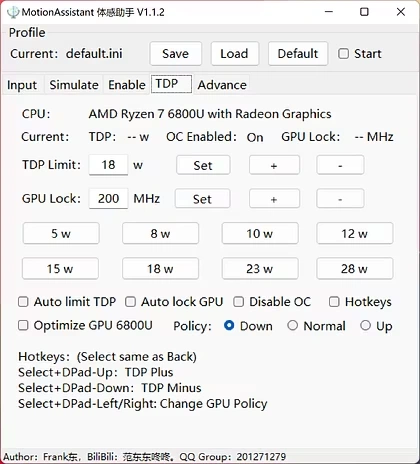
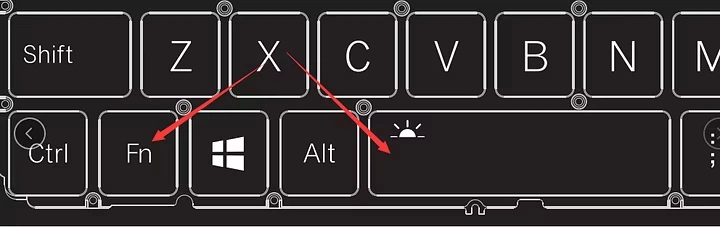
A2: The operation is very simple. The keyboard backlight can be enabled by pressing the Fn + Space key combination. The keyboard backlight is turned on by default and stays on, and the brightness is divided into two levels. Therefore, assuming that the keyboard light is in the off state, pressing the key combination three times in sequence means the keyboard light is weak, the keyboard light is strong, and the keyboard light is off.
Notice:
The backlight of the keyboard will consume power, so it is recommended to turn it off during the day.
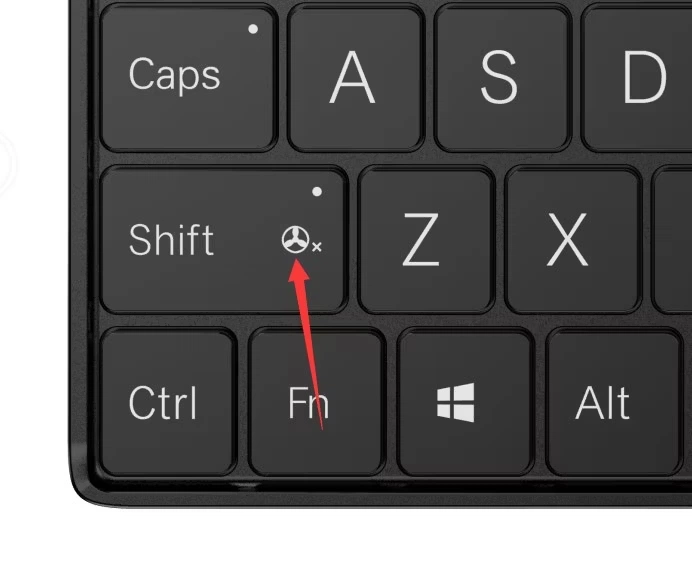
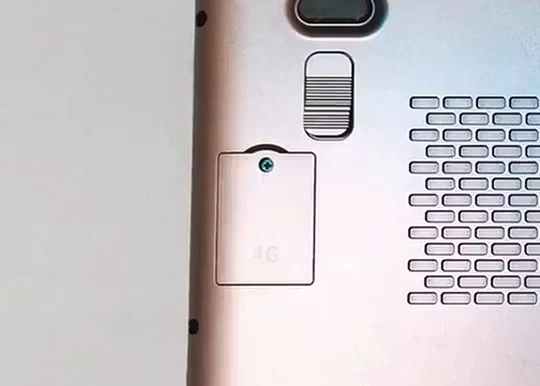
A4: When you choose the 4G LTE version of WIN Max 2, it means that you can insert the mobile phone card into the built-in 4G LTE module to access the Internet through the mobile network, instead of being limited to using the Wi-Fi network. WIN Max 2 only supports Nano-SIM cards, the installation method is very simple:
• Step 1: Use a 2.5mm Phillips screwdriver to remove the screw on the 4G LTE module cover.
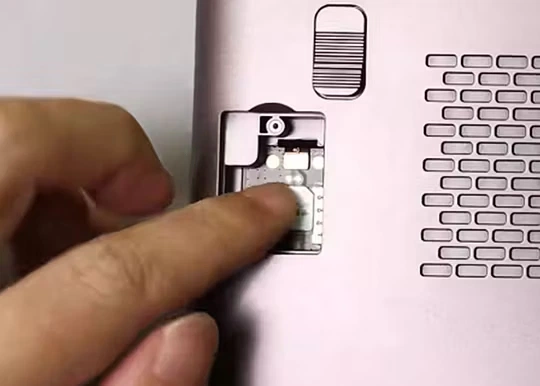
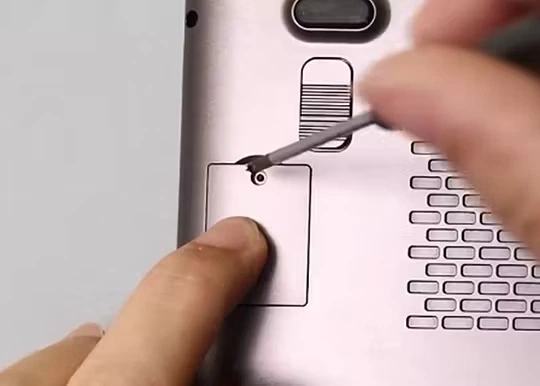
A5: Compared with Nano-SIM card, the installation of 2230 SSD is easier. The specific operation steps are as follows:
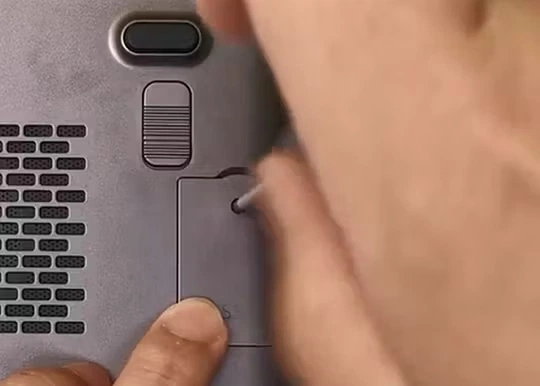
• Step 1: Turn off the computer. Use a 2.5mm Phillips screwdriver to remove the screw on the SSD cover.
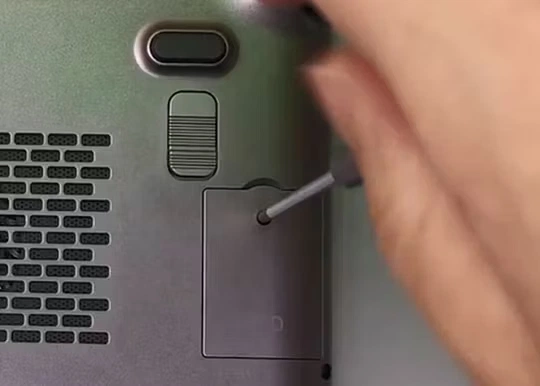
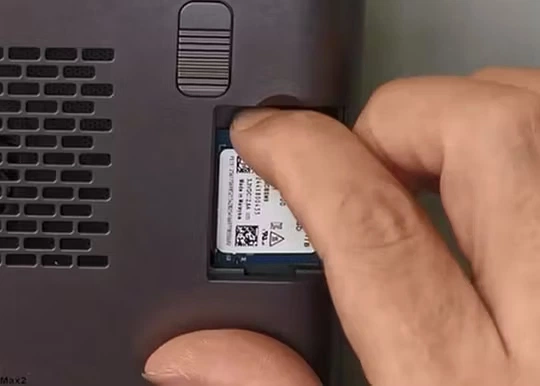
A6: "one key recovery" is available, you can follow the steps below:
• Step 1: Turn off the computer. Use a 2.5mm Phillips screwdriver to remove the screw on the SSD cover.
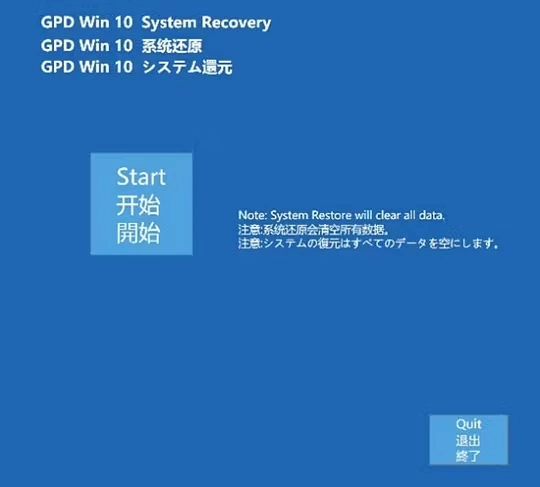
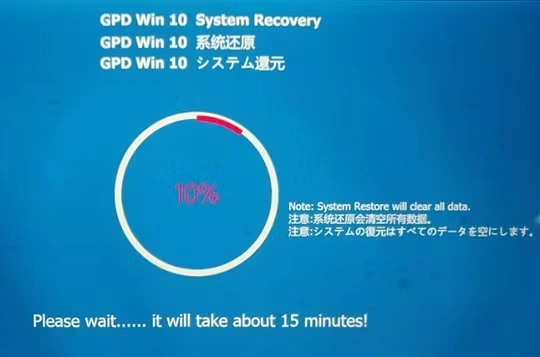
• When recovering, the power must be kept above 50%, or plugged into the charger, the power below 50% will not be able to recovery.
• The system recovery will clear all data on the C drive. Please back up important files in advance. The recovery interface supports touch screen and mouse operations.
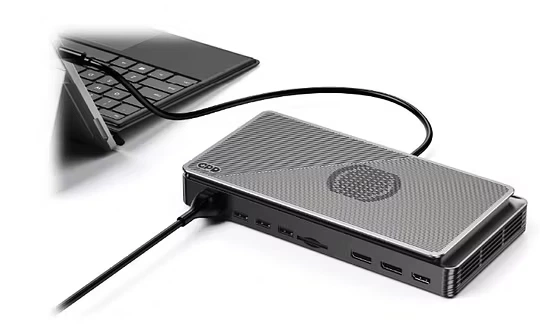
A7: The process of connecting the external graphics card dock is as follows:
• Step 1:Please turn off the computer.
• Step 2:Connect one end of the included USB4 cable to your computer's USB4 or Thunderbolt 3/4 port, and the other end to the USB4 port on the GPD G1 Graphics Dock. (If you have purchased the Oculink SFF-8611 dual male port cable and the GPD WIN Max 2 2023, connect one end of the cable to the Oculink SFF-8612 female port on each device.)
• Step 3:Connect the power cable to the power port on your GPD G1, and press the power button.
• Step 4:Turn on your computer, and depending on your operating system version, download the driver forthe graphics card expansion dock by clicking on the link below or scanning the QR code, and install it.
Download AMD Radeon™RX 7600M XT Driver:
Download in Multiple Languages:https: //www.gpd.hk/gpdwinmax22023firmwaredriver
Note:
The Oculink cable does not support hot-swapping. If you connect the GPD G1 to your computer via the Oculink SFF-8611 dual male port cable while the computer is on, the GPD G1 may not be recognized. Frequent hot-swapping may cause two problems: short circuits and arcs. In addition, hot-swapping may cause damage to components and input and output pins.
When you are ready to remove the Oculink SFF-8611 cable, do not use force. Instead, press the latch on the connector and gently remove it. Failure to do so may result in damage to the interface.

Details are as follows:
• Connected via USB4 Cable:
At this time, all of the GPD G1's HDMI, DisplayPort, USB A, and SD 4.0 card reader interfaces are functional. You can connect up to three external displays and in sert a USB drive into the USB A port to copy and store important data.
• Connected via Oculink SFF-8611 Cable:
At this time, the HDMI and DisplayPort interfaces ofthe GPD G1 are functional, while the USB A and SD 4.0 card reader interfaces are not. The Oculink connection directly connects to PCIe, providing 63Gbps of effective bandwidth, and can maximize the performance of the built-in graphics card.
• Both Cables Connected:
At this time, the built-in graphics card uses the PCIe channel connected via the OculinkSFF-8611 cable, which has exclusive access to 63Gbps of effective bandwidth. The USB4 cable is responsible for data transmission for the USB A and SD 4.0 card reader interfaces.
A1:Please use the "MotionAssistant" provided by the system, which contains several system optimization tools, as show n in the right figure.
It can also be downloaded via the link below:
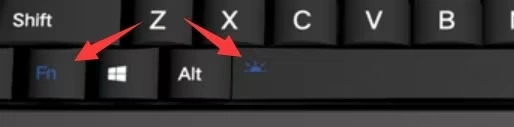
A2: The operation is very simple. Press the Fn + Space key combination to enable the keyboard backlight. The keyboard backlight is initially set to be turned on and stay constantly lit. It has two brightness levels. So, assuming the keyboard backlight is off, pressing the key combination three times in a row will cycle through the following: default brightness, maximum brightness, and off.
Notice:
The backlight of the keyboard will consume power, so it is recommended to turn it off during the day.
A6: "one key recovery" is available, you can follow the steps below:
• Step 1: Turn off the device, press the "power key" while booting, press and hold the "Tab" key.
Cautions:
• When recovering, the power must be kept above 50%, or plugged into the charger, the power below 50% will not be able to recovery.
• The system recovery will clear all data on the C drive. Please back up important files in advance. The recovery interface supports touch screen and mouse operations.
A7: The process of connecting the external graphics card dock is as follows:
• Step 1:Please turn off the computer.
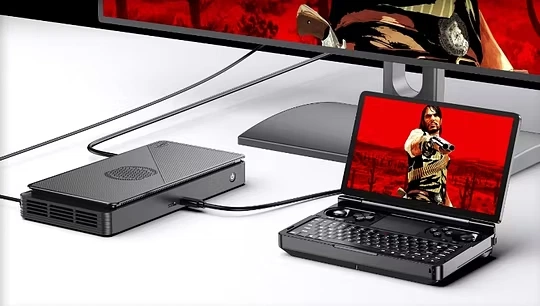
• Step 2:Connect one end of the included USB4 cable to your computer's USB4 or Thunderbolt 3/4 port, and the other end to the USB4 port on the GPD G1 Graphics Dock. (If you have purchased the Oculink SFF-8611 dual male port cable and the GPD WIN Max 2 2023, connect one end of the cable to the Oculink SFF-8612 female port on each device.)
• Step 3:Connect the power cable to the power port on your GPD G1, and press the power button.
• Step 4:Turn on your computer, and depending on your operating system version, download the driver forthe graphics card expansion dock by clicking on the link below or scanning the QR code, and install it.
• Step 5:After successfully installing the driver, you can check if the graphics card expansion dock is successfully driver-enabled in the "Device Manager".
Download AMD Radeon™RX 7600M XT Driver:
Download in Multiple Languages: https://www.gpd.hk/gpdwinmax22023firmwaredriver
Note:
The Oculink cable does not support hot-swapping. If you connect the GPD G1 to your computer via the Oculink SFF-8611 dual male port cable while the computer is on, the GPD G1 may not be recognized. Frequent hot-swapping may cause two problems: short circuits and arcs. In addition, hot-swapping may cause damage to components and input and output pins.
When you are ready to remove the Oculink SFF-8611 cable, do not use force. Instead, press the latch on the connector and gently remove it. Failure to do so may result in damage to the interface.
Difference between USB4 and Oculink SFF-8611 Cable Connections
Oculink and USB4 each use independent PCIe channels. Oculink is directly connected to PCIe and is only responsible for video signal output. USB4 supports more protocols, such as Thunderbolt 3, and can transmit both video and data signals. The differences between USB4 and Oculink SFF-8611 cable connections are shown in the following table:
Details are as follows:
• Connected via USB4 Cable:
At this time, all of the GPD G1's HDMI, DisplayPort, USB A, and SD 4.0 card reader interfaces are functional. You can connect up to three external displays and in sert a USB drive into the USB A port to copy and store important data.
• Connected via Oculink SFF-8611 Cable:
At this time, the HDMI and DisplayPort interfaces ofthe GPD G1 are functional, while the USB A and SD 4.0 card reader interfaces are not. The Oculink connection directly connects to PCIe, providing 63Gbps of effective bandwidth, and can maximize the performance of the built-in graphics card.
• Both Cables Connected:
At this time, the built-in graphics card uses the PCIe channel connected via the OculinkSFF-8611 cable, which has exclusive access to 63Gbps of effective bandwidth. The USB4 cable is responsible for data transmission for the USB A and SD 4.0 card reader interfaces.
A1:Please use the "MotionAssistant" provided by the system, which contains several system optimization tools, as show n in the right figure.
It can also be downloaded via the link below:
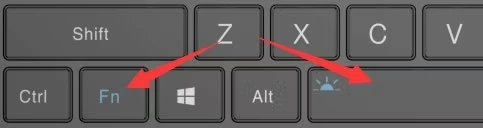
A2: The operation is very simple. The keyboard backlight can be enabled by pressing the Fn + Space key combination. The keyboard backlight is turned on by default and stays on, and the brightness is divided into two levels. Therefore, assuming that the keyboard light is in the off state, pressing the key combination three times in sequence means the keyboard light is weak, the keyboard light is strong, and the keyboard light is off.
Notice:
The backlight of the keyboard will consume power, so it is recommended to turn it off during the day.
A6: "one key recovery" is available, you can follow the steps below:
• Step 1: Turn off the device, press the "power key" while booting, press and hold the "Tab" key.
Cautions:
• When recovering, the power must be kept above 50%, or plugged into the charger, the power below 50% will not be able to recovery.
• The system recovery will clear all data on the C drive. Please back up important files in advance. The recovery interface supports touch screen and mouse operations.
A7: The process of connecting the external graphics card dock is as follows:
• Step 1:Please turn off the computer.
• Step 2:Connect one end of the included USB4 cable to your computer's USB4 or Thunderbolt 3/4 port, and the other end to the USB4 port on the GPD G1 Graphics Dock. (If you have purchased the Oculink SFF-8611 dual male port cable and the GPD WIN Max 2 2023, connect one end of the cable to the Oculink SFF-8612 female port on each device.)
• Step 3:Connect the power cable to the power port on your GPD G1, and press the power button.
• Step 4:Turn on your computer, and depending on your operating system version, download the driver forthe graphics card expansion dock by clicking on the link below or scanning the QR code, and install it.
Download AMD Radeon™RX 7600M XT Driver:
Download in Multiple Languages: https://www.gpd.hk/gpdwinmax22023firmwaredriver
• Step 5:After successfully installing the driver, you can check if the graphics card expansion dock is successfully driver-enabled in the "Device Manager".
Note:
The Oculink cable does not support hot-swapping. If you connect the GPD G1 to your computer via the Oculink SFF-8611 dual male port cable while the computer is on, the GPD G1 may not be recognized. Frequent hot-swapping may cause two problems: short circuits and arcs. In addition, hot-swapping may cause damage to components and input and output pins.
When you are ready to remove the Oculink SFF-8611 cable, do not use force. Instead, press the latch on the connector and gently remove it. Failure to do so may result in damage to the interface.
Difference between USB4 and Oculink SFF-8611 Cable Connections
Oculink and USB4 each use independent PCIe channels. Oculink is directly connected to PCIe and is only responsible for video signal output. USB4 supports more protocols, such as Thunderbolt 3, and can transmit both video and data signals. The differences between USB4 and Oculink SFF-8611 cable connections are shown in the following table:
Details are as follows:
• Connected via USB4 Cable:
At this time, all of the GPD G1's HDMI, DisplayPort, USB A, and SD 4.0 card reader interfaces are functional. You can connect up to three external displays and in sert a USB drive into the USB A port to copy and store important data.
• Connected via Oculink SFF-8611 Cable:
At this time, the HDMI and DisplayPort interfaces ofthe GPD G1 are functional, while the USB A and SD 4.0 card reader interfaces are not. The Oculink connection directly connects to PCIe, providing 63Gbps of effective bandwidth, and can maximize the performance of the built-in graphics card.
• Both Cables Connected:
At this time, the built-in graphics card uses the PCIe channel connected via the OculinkSFF-8611 cable, which has exclusive access to 63Gbps of effective bandwidth. The USB4 cable is responsible for data transmission for the USB A and SD 4.0 card reader interfaces.
A1:It is very easy, you can adjust it through the BIOS. The specific operations are:
1. Press the power button to boot, and hold down the Fn+Del key at the same time to enter the BIOS.
2. Select Setting tab.
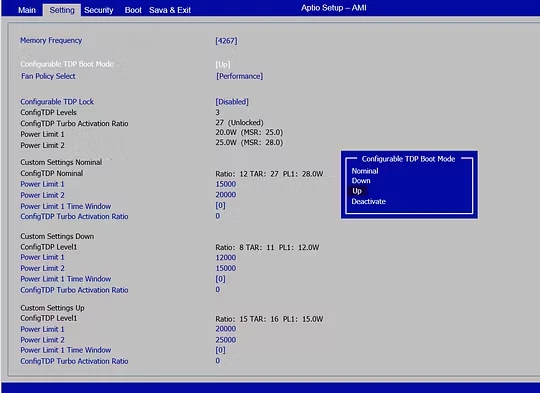
3. Click "Configuration TDP Boot Mode", in the pop-up selection box, there are "Nominal", "Down" and "Up" three block TDP to choose from,
• Down: Energy saving mode (12W)
• Nominal: Normal mode (15W)
• UP: High performance mode (20W)
4. After selection, pressFn+F4 to save and restart to take effect. (For the BIOS interface, please refer to the figure below)
Please note:
The Pocket 3 (N6000 processor) only supports 6-10W power adjustment, but the three-stage power adjustment is not supported.
A2: A2: The operation is rather simple: when your computer has been turned on, press Fn+Space to turn on the keyboard backlight, and press the hotkey again to turn it off.
Please note:
Thekeyboardbacklightturnsoffautomaticallyafter30seconds.
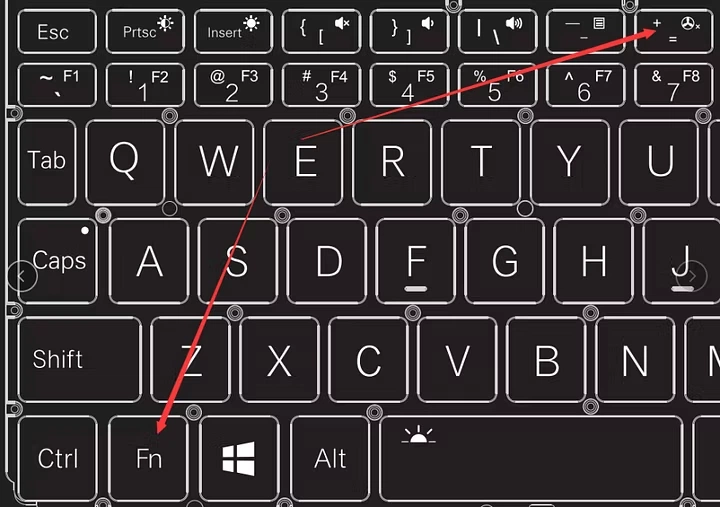
A3: For Pocket 3, the fan cannot be completely turned off. However, a Mute function is provided. When your computer is turned on, the fan will start working by default and automatically adjust its rotational speed according to the current temperature. If you want to go the Mute mode, press “Fn + =” and the fan will rotate at a ultra low speed.
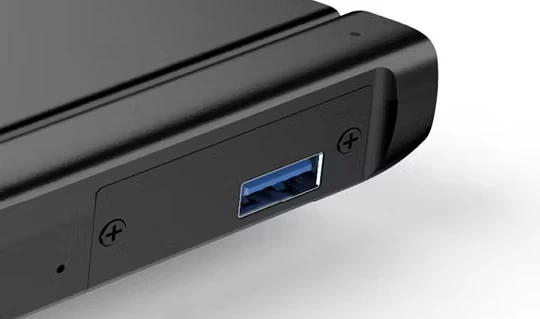
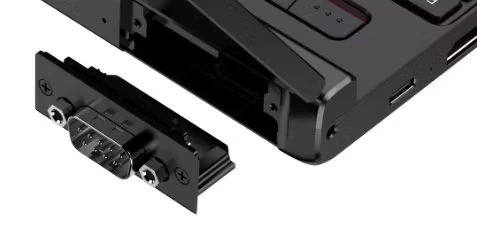
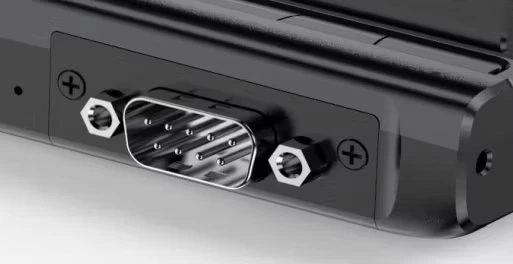
A4: Pocket 3 is fitted with the USB A module by default. If you have bought the RS-232 or KVM module,you can follow the following simple procedures to install it:
• Step 1: Use a 2.5mm hex driver to remove the two screws of the USB A module and unplug it.
.webp?w=540&h=591)
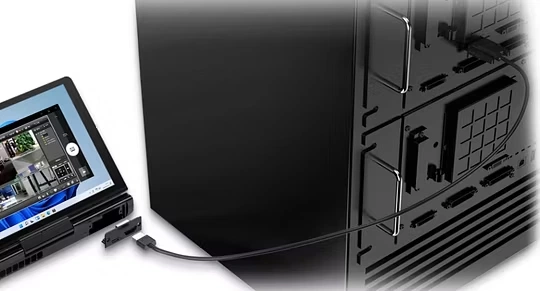
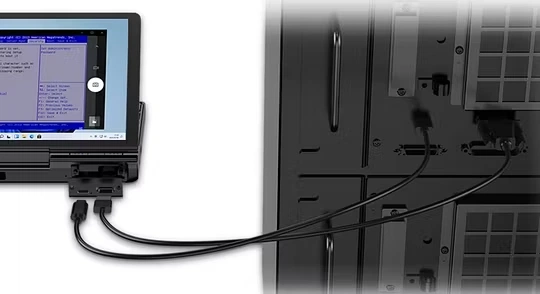
A6: To control another device using the KVM module, the device to be controlled should have a HDMI/VGAand USB A/C interface.
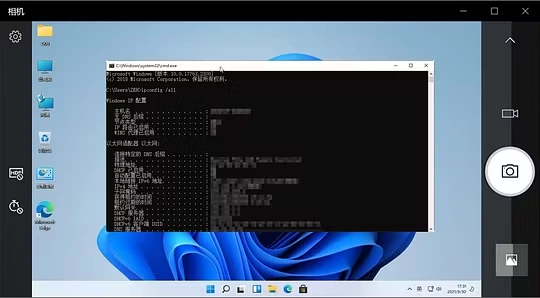
The following is an example of confirming the TCP/IP configuration information of the device to be controlled (under powered-on state):
• Step 1: Use a HDMI Type A or VGA-to-HDMI cable (when the device to be controlled has a VGA interface only) to connect the KVM to the device to be controlled.
• Step 2: Use a male-to-male USB or C-to-A USB cable (when the device to be controlled has a USB A interface only) to connect the KVM to the device to be controlled.
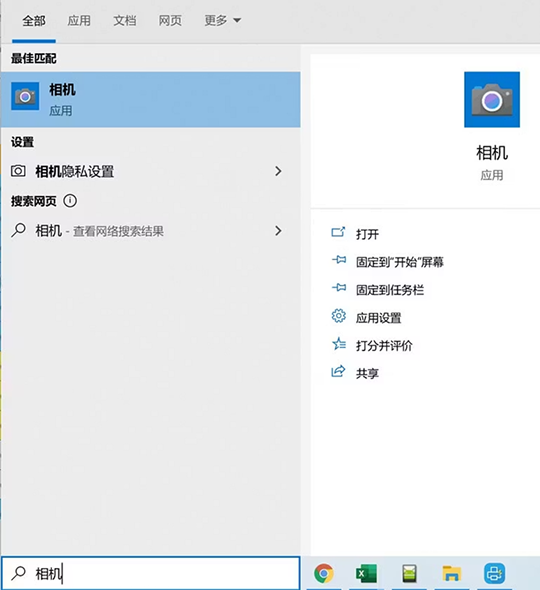
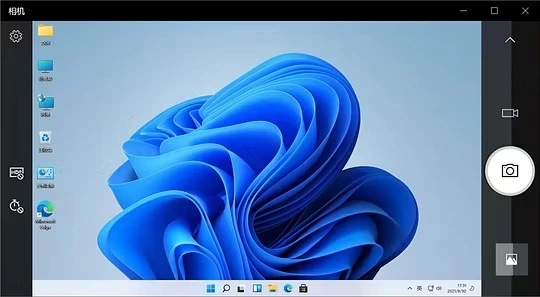
• Step 3: Enter “camera” on the search box at the lower left corner of the desktop to turn on the camera.
A7: "one key recovery" is available, you can follow the steps below:
• Step 1st: turn off the device, press the "power key" while booting, press and hold the "Tab" key.
Cautions:
• When recovering, the power must be kept above 50%, or plugged into the charger, the power below 50% will not be able to recovery.
• The system recovery will clear all data on the C drive. Please back up important files in advance. The recovery interface supports touch screen and mouse operations.

loading